
G-SYNC is NVIDIA’s technology that synchronizes the refresh rate of the monitor with the framerate of a compatible NVIDIA GeForce GPU. This technique helps eliminate screen tearing, reduce stuttering, and reduce input lag for a more responsive and visually impressive gaming experience.
Table of Contents
Types of NVIDIA G-SYNC
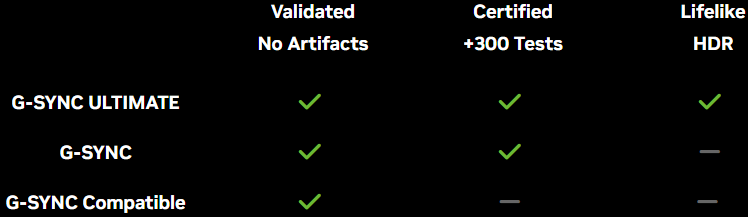
According to NVIDIA, each G-SYNC monitor goes through rigorous testing so that they meet the highest standards of performance. Each aspect of the monitor, from refresh rate, to color accuracy, to input lag is tested to ensure the smoothest possible gaming experience. There are different tiers of NVIDIA G-Sync that include different features.
Unlike FreeSync which can be used with just about any graphics card, NVIDIA G-Sync only works with NVIDIA GeForce graphics cards.
NVIDIA G-SYNC Compatible
The basic tier of G-Sync monitors are known as “G-Sync Compatible”. These monitors do not use built in NVIDIA processors. However, they are validated by NVIDIA to provide a good basic VRR (variable refresh rate) experience that reduces screen tearing and stuttering.
Unlike “true” G-Sync monitors, other kinds of non-GeForce graphics cards can use these monitors adaptive refresh rate feature, which essentially act FreeSync / Adaptive sync.
NVIDIA G-SYNC
G-Sync (certified) monitors feature a special G-Sync processor that helps deliver amazingly smooth gaming. These monitors are aimed at enthusiast and pro level gamers who want a full VRR (variable refresh rate) range as well as variable overdrive for a crisp image with no tearing, stuttering, or input lag.
NVIDIA G-SYNC Ultimate
G-Sync Ultimate monitors use the highest performing G-Sync processors to deliver the best gaming experience with additional features like HDR, high contrast, accurate colors, and the lowest latency.
How Does G-SYNC Work?
G-Sync is simply an adaptive sync technology that is designed to eliminate screen tearing and reduce stuttering during gameplay. This is achieved by syncing up your monitor’s refresh rate with your graphics card’s frame output.
The result is smooth tear-free gameplay, even if framerates fluctuate.
Frequently Asked Questions About G-SYNC
How is NVIDIA G-SYNC different from FreeSync?
Both are adaptive synchronization techniques. G-Sync is NVIDIA’s technology that synchronizes the refresh rate of your monitor with the frame rate of your GeForce graphics card. G-Synch is exclusive to NVIDIA graphics cards, and monitors must be either certified G-Sync compatible or have a special NVIDIA G-Sync processor.
FreeSync on the other hand, is AMD’s technology solution for adjusting your monitor’s refresh rate to match your GPU’s fluctuating framerate. Unlike G-Sync, Freesync is more widely compatible and works with Radeon, GeForce, and Intel ARC graphics cards. It is based on an open standard and does not require a specialized chip in the monitor to work, so usually FreeSync monitors are more affordable than their G-Sync counterparts.
Should I enable G-SYNC if my monitor supports it?
Yes if you have a G-Sync monitor you should enable and use G-Sync for the smoothest gaming experience.
Do I need an NVIDIA GeForce graphics card to use G-SYNC?
For the most part, yes. G-Sync will only be usable on NVIDIA GeForce graphics cards. The only exception to this is if it is a G-Sync Compatible monitor. For these, you can use the adaptive sync feature with any type of graphics card.
What are the benefits of using G-SYNC?
G-Sync is a great choice for tear-free gaming. In addition to eliminating screen tearing, G-SYNC delivers ultra responsive performance with the highest refresh rates and low latency.
G-Sync displays with Reflex have a built in latency tool that can detect clicks from Reflex compatible mice and measure the time to change on screen. Monitors with this feature can reach up to 360Hz and deliver exceptional responsiveness with a built in E-sports mode
How to tell if monitor has G-SYNC?
To determine if you monitor has G-Sync, check the specifications for G-SYNC branding or check for G-SYNC compatibility in it’s product description.
Additionally, NVIDIA has an official list of G-Sync compatible monitors.
How do I check if G-Sync is enabled and working properly?
Right click your desktop, go down to NVIDIA Control Panel and click it. Go to “Display”, then select “Set up G-SYNC”. Check the box “Enable G-SYNC, G-SYNC Compatible
If you want to verify that it is running, go up to “Display” at the top tool bar in the NVIDIA Control Panel. You can check “G-Sync Indicator”. Next time you boot up a game you should see the G-Sync indicator in the top right corner.