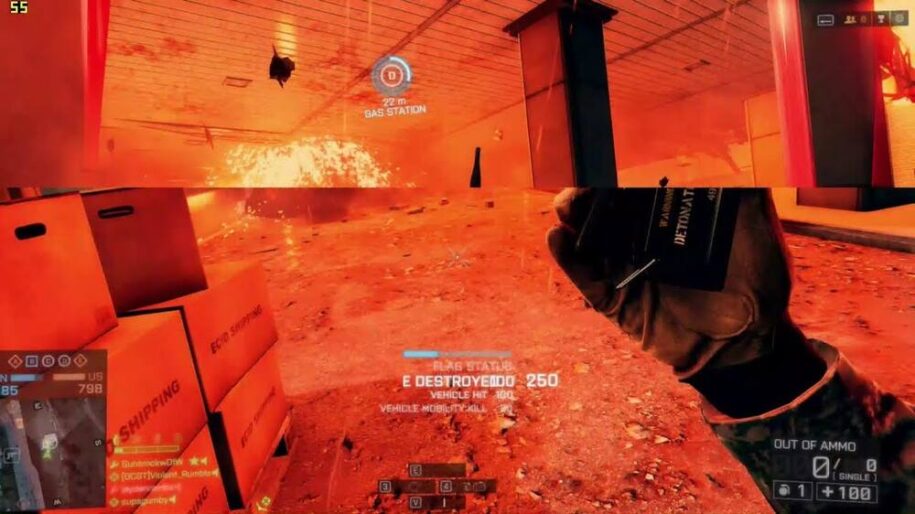
Screen tearing is an unpleasant visual artifact that can ruin your gaming experience once you notice it. Screen tearing occurs when the refresh rate of your monitor and the frame rate that your GPU is putting out are not in synch (not the same).
Table of Contents
What Does Screen Tearing Look Like?
You’ll see it as a horizontal split across the image you see on screen (see example below). It can occur in just one spot or multiple times across the image if things are getting really bad.
It’s is easy to follow the logic many gamer’s may have, thinking that having a higher frames per second than your monitors refresh rate would not be an issue, but it can cause noticeable screen tearing, which once you experience it, you realize just how annoying it can be.
How to Fix Screen Tearing
V-Sync
VSync (vertical synchronization) is one of the best ways to eliminate screen tearing.
How this works is by syncing the refresh rate of your monitor with the frame rate your GPU is outputting in a game. This can in some cases cause a tiny bit of input lag due to the way it can make your graphics card wait until the monitor displays a full frame, but modern tech has reduced this to unnoticeable levels.
Some monitors include synchronization technology that allow the monitor to dynamically change it’s refresh rate to match the GPU’s framerates. It does so within the VRR (variable refresh rate) range the monitor supports. The two sync technologies you will see are NVIDIA Gsync and AMD FreeSync.
NVIDIA G-SYNC
G-Sync is NVIDIA’s technology that synchronizes the refresh rate of your monitor with the frame rate of your GeForce GPU. It can help minimize stutter, eliminate screen tearing, reduce input lag, and overall make your gaming feel smoother.
Generally, G-Sync monitors come with a more premium price tag. They also require a proprietary NVIDIA chip, which monitor makers must have in their display to be certified as G-Sync or G-Sync Ultimate.
AMD FreeSync
AMD FreeSync is AMD’s technology solution for adjusting your monitor’s refresh rate to match your GPU’s fluctuating framerate. Unlike G-Sync, Freesync is widely compatible and works with all the different brands of GPU – Radeon, GeForce, and Intel ARC graphics. FreeSync is based on an open standard, so monitors using FreeSync are generally more affordable than comparable G-Sync monitors.
Not all G-Sync monitors require the NVIDIA chip (confusing we know, just used for classify certain “levels” or “tiers” of G-Sync now), and now most FreeSync monitors are G-Sync compatible.
The whole thing is kind of a mess and confusing to be quite frank, but at the end of the day either technology helps you enjoy a smoother gaming experience.
Frequently Asked Questions About Screen Tearing
What is the difference between refresh rate and frame rate?
Refresh rate refers to your monitor. It is how many times a second it updates the image displayed on the screen, measured in hertz (Hz). For example, a monitor with a 144 Hz refresh rate can update the displayed image 144 times every second.
Frame rate, on the other hand, refers to how many times per second your graphics card generates a frame, measured in FPS (frames per second).
When a difference exists between these two, especially when the frame rate is faster than the refresh rate, screen tearing occurs.
Why does screen tearing happen?
If a monitor is 60 Hz, it refreshes every 16 milliseconds. So ideally it should receive a new frame from the GPU on or slightly before that magic 16ms mark. Unfortunately we do not live in perfect world. Most GPUs will have some inconsistencies when it comes to rendering out frames, because some scenes in games are more complex than others, so things can get rendered at differing rates.
When V-sync is disabled, the GPU outputs a frame to the display as soon as the frame is ready to begin output. This means that new frames could be being drawn in the middle of the old frames, which creates that ugly horizontal tear we know as screen tear. This ugly blotch is where the new frame meets the old frame that is still there.
V-Sync can eliminate screen tearing, but this can introduce some level of stuttering. The synronization technologies talked about above, G-Sync and FreeSync can alleviate both of these annoying issues.
How to identify screen tearing?
You will usually see screen tearing as a single horizontal line, or sometimes multiple horizontal lines across the screen. This “tear” can shift or move around as you play a game and the screen changes.
Sometimes screen tearing can be very subtle and you may not notice it at all or it is not enough to bother you. But when it is severe it is immediately apparent and annoying.