Computing power generates heat. There is no way around that. Thermal throttling is a safeguard against the dangers of overheating.
It is an automatic protective measure that is built into CPUs, where the processor reduces its clock speed when temperatures exceed a certain set threshold. As the frequency is reduced, the amount of heat generated by the processor is also reduced. This allows the CPU to begin cooling down back in to safer operating temperatures.
When gaming, your CPU is performing many complex calculations and tasks, increasing its power consumption and generating significant heat as the frequency of the processor rises to it’s max to pump out framerates and in-game calculations. To prevent heat from going out of control, the CPU cooler ramps up, thanks to the CPU’s internal thermal management system, which triggers throttling. This scales back performance, but reduces the thermal output of the processor and allows it to begin cooling.
The above information also applies to your graphics card. It will throttle it’s performance by lowering clock speeds as a way of managing heat and preventing overheating.
How Much Does Thermal Throttling Effect Performance
Thermal throttling will reduce the frequency or clock speed of your CPU or GPU. As a result, performance can take a hit as your hardware will not be operating at it’s fastest frequencies. Typically you will not see a drastic reduction in performance, but you will notice some things happen, especially when gaming. Throttling can cause lag, stuttering, and reduced framerates. If you were playing a game that is barely hitting 60 fps than you may notice these drops even more.
How to Monitor Temperature
Modern CPUs and GPUs will begin to throttle when they reach temperatures of around 90C to 100C. When these temperatures are reached, clock speeds are lowered to reduce heat output and prevent any heat related damage.
To keep track of temperature and get an idea of what temperatures your hardware is reaching when gaming, there are a variety of monitoring softwares you can use, below are a couple we recommend.
HWMonitor
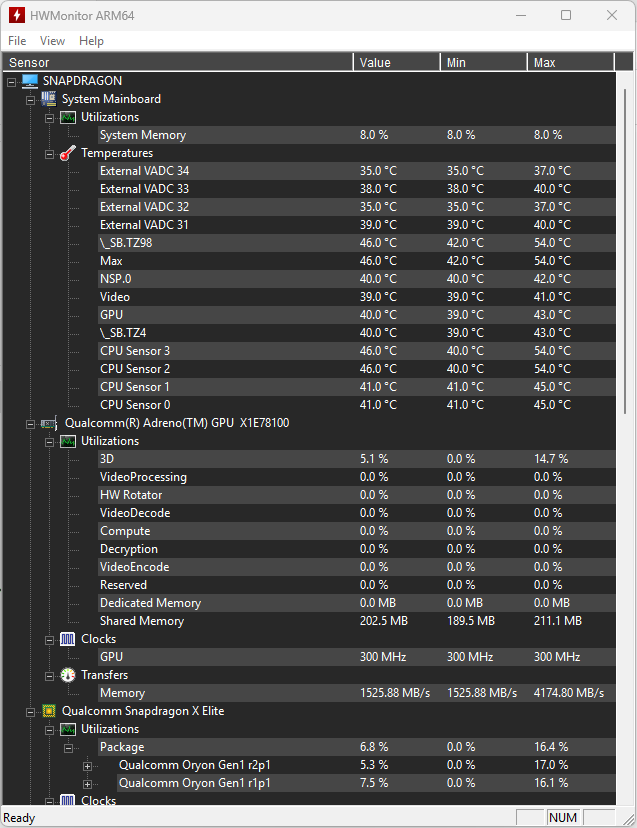
HWMonitor, from CPUID, is a software that can monitor voltages, temperatures, and fan speeds. The program can monitor both CPU and GPU hardware, memory modules that have thermal sensors, SSDs, and batteries (for laptops).
HWMonitor is free to download and use. There is a paid version called HWMonitor PRO which comes with some more detailed features, but for the average user, the free version is perfect.
CPU-Z
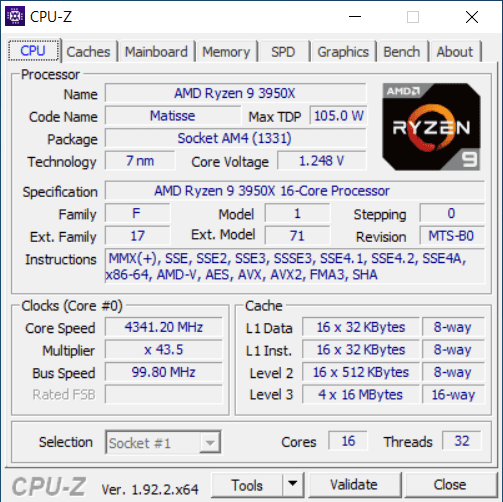
CPU-Z is another software from CPUID. This one is focused on the performance metrics of your hardware. Things like the model and number of your CPU, its processes, cache levels, and frequencies, motherboard information including the model, chipset, and BIOS versions, and memory details like timings and module specifications.
It includes a built in benchmarking tool to test CPU performance.
Benchmarking
Prime 95
Prime95 is a free benchmarking program that puts extreme load on your computers CPU and memory using a variety of compute-intensive calculation tests. Think of it as a torture test, which can be used to identify hardware instability, such as a weakness in your systems cooling capability.
Avoiding Thermal Throttling – Methods
Air Cooling
Air cooling has been around since the very first gaming PC. A tried and true method of removing heat from your CPU. A heat sink attaches to your processor, which conducts heat into a stack of radiator fins and a fan blows to dissipate the heat from this heat sink.
Liquid Cooling
Liquid cooling uses liquid to transfer heat away from your CPU or GPU. Liquid conducts heat much better than air, so generally liquid coolers offer superior cooling performance versus air cooling.
Liquid cooling works by pumping a coolant through a water block attached to the heat source (either your CPU or GPU). Then a radiator with fans cools the liquid and recirculates it.
We offer a variety of liquid cooling options, including the AIOs we use in many of our prebuilt gaming pcs all the way to fully custom liquid cooling with our HyperLiquid series gaming desktops.
Thermal Paste
Using a good quality thermal paste is key to avoiding thermal throttling. Thermal paste works by enhancing the heat transfer between the CPU and the heat sink. It does this by filling microscopic air gaps on the surface of the processor, creating more surface area in contact with the heatsink and more efficient heat dissipation.
Carbice Ice Pad

The Carbice Ice Pad is a new technology available on CyberPowerPC gaming desktops. It is a thermal pad that uses space-age carbon nanotube cooling technology in place of traditional thermal paste.
Unlike thermal pastes, which dry up and lose contact over time, the Ice Pad stays in place and continues working no matter how hot things get.
You can learn more about the Carbice Ice Pad on our website.
Gaming Environment
Having a well organized gaming environment is another way you can improve cooling and combat thermal throttling.
Don’t have your PC shoved up against a wall or suffocating in a small space. Make sure it has unobstructed airflow paths coming in and out of the PC.
If you have air conditioning, consider running it when playing intensive games to keep the overall ambient temperature lower in your gaming space.
Cleaning
A clean PC is a happy PC. Dust and other debris can clog up your fans and vents. These can create blockages that reduce airflow and trap heat.
You don’t need to be super OCD about dusting your PC, but you should regularly give things a cleaning if you begin to notice excessive amounts of dust building up.
Another way of avoiding dust build up in your PC is keeping your living space clean. Stop dust at it’s source and there is no way it is finding its way into your PC.
Overclocking
Be wary when overclocking your PC. Increasing the frequency that your CPU or GPU operate at may improve performance, but it also generates more heat. Make sure that your cooling is good enough to support the overclocks you have to avoid thermal throttling.
Undervolting
Undervolting your gaming PC is a way of lowering the default voltage supplied to a component. This is mostly done on the graphics card. You can reduce the amount of voltage supplied to the graphics card because most manufacturers set a baseline voltage that is a bit higher than necessary to ensure a more stable system.
This reduction in power consumption can reduce heat generated without causing performance issues.
It is generally a more advanced thing to do, so make sure to follow a guide or tutorial from a trusted source.
The process is pretty simple. First you start by disabling any overclocking, including automatic overclocks. Next you’ll want to run a stress test of some sort. This could be a benchmarking tool or running an intensive game. However you do it, you want to monitor the temps, voltage, and clock speed of the GPU during it.
Next you will try to find the stable voltage. Using tools like MSI Afterburner or something similar, you can gradually reduce the voltage while keeping the core clock speed stable.
Continue reducing the voltage, just until the PC becomes unstable or crashes. Once a crash occurs, tweak the voltage slightly and try again to find the highest stable undervolt.
Once you have this figured out, congratulations you have succefully undervolted your PC. Enjoy reduce power draws and cooler temperatures!
As you can see, thermal throttling can be a serious issue. Now that you are armed with the knowledge of what thermal throttling is, how to identify it, and different tools and techniques you have to reduce it – you can feel more confident in your gaming PC knowledge.