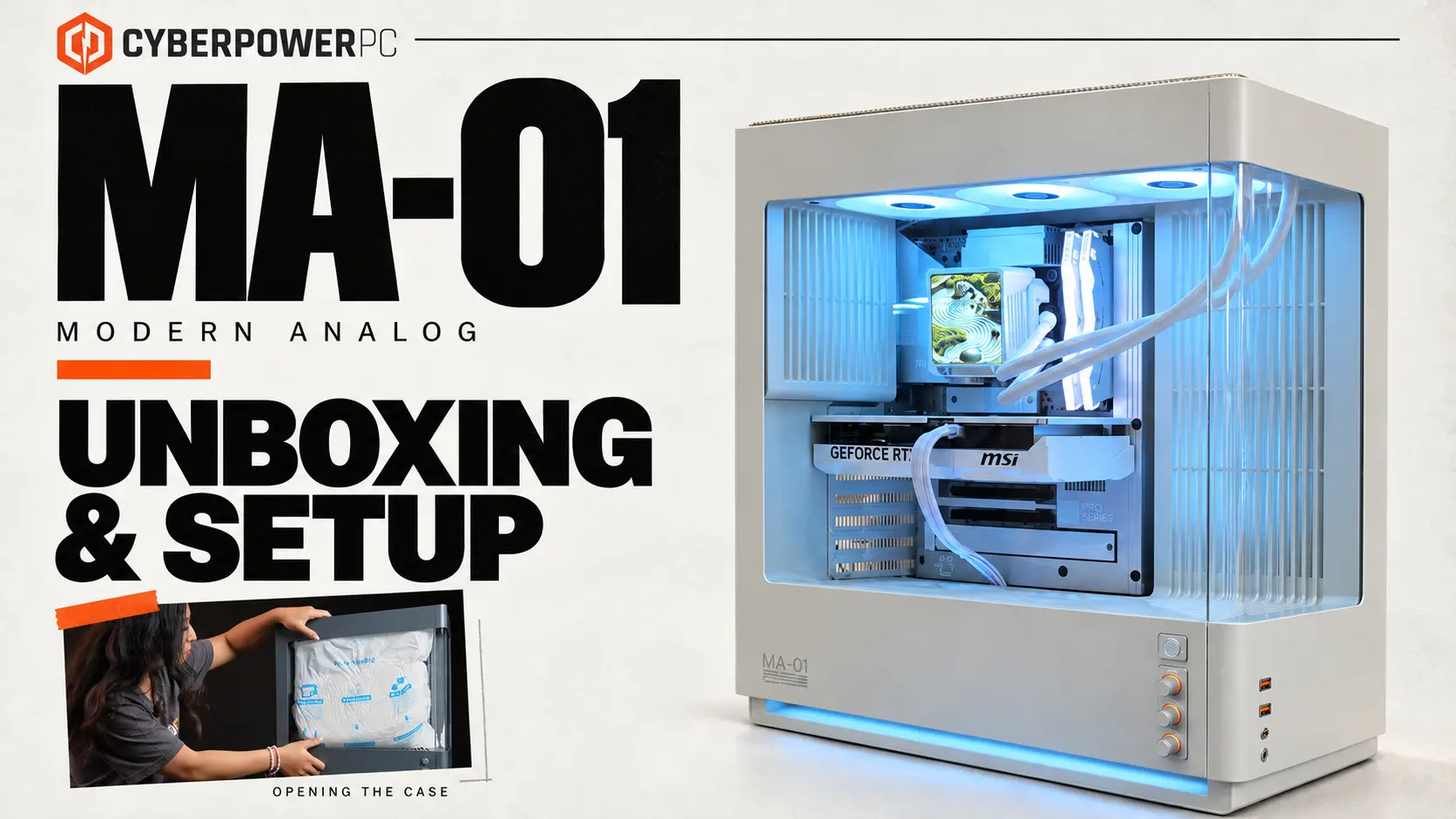
In this informational guide, we will walk you through how to remove case panels to access the interior of your MA-01 PC case, how to remove the vent panels for access to the fans, and some general information about the features of the case. Let’s dive right in!
This written guide is also available in video form over on our Youtube channel.
Opening The Box
Be careful! PCs are delicate, so let’s treat your new PC with care. We recommend doing things on the floor, to prevent the risk of dropping anything.
Grab a sharp object, preferably a pair of scissors, and slice open the tape sealing the top of the box. Open up the box.
Ensure all the flaps of the box are open. With one hand holding a flap down, and the other holding the PC, carefully rotate the box so that the opening is now facing the floor.
Stand up. Carefully pull up on the box. It should slide right up, but you may need to shimmy it a bit for it to continue sliding up. Your PC will now be out of the box, sitting safely on the floor.
Carefully rotate the PC once more so that it is right side up.
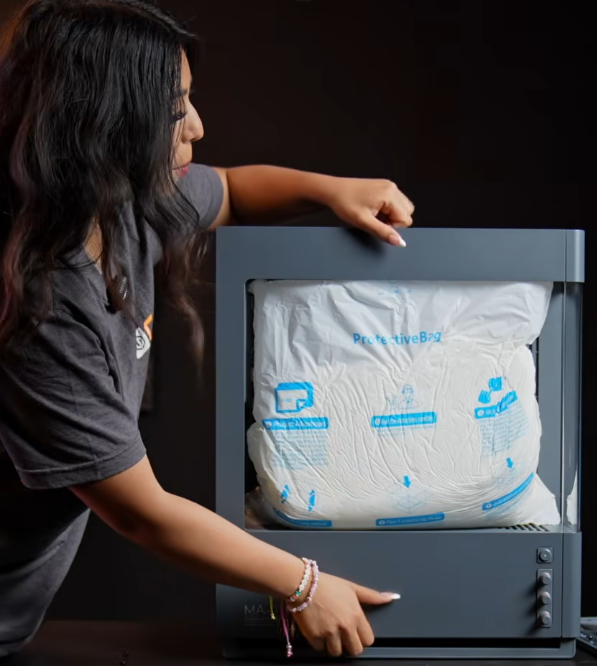
Now that it is out of the box, you can safely move the PC to where you would like to set it up, like on top of your desk! Simply pull off the plastic protective bag and take a good look at your shiny new PC!
Opening The Case
Your PC is officially unboxed but there is still some more things to do. You’ll notice there is a big block of an expanding foam bag inside of the PC. We put these in place to protect your components during shipping, but now it is time for it to come out. For that we need to open the MA-01 case.
Start by locating the rear of the PC, the area with all of the ports you plug things into. At the top of the rear of the case you will see a small indent. With your hand on this indentation, place your other at the front of case to keep it stable. Pull up from the indentation and the top panel will pop right off. Easy peasy. Set that top panel off to the side.
Next grab a standard Phillips head screwdriver (the cross pattern). Looking down at the top of the PC, there will be two screws in line with the side glass panel. Unscrew those and set them aside.
With those screws removed, pop off the side panel by pulling it straight, away from the PC, holding the top and bottom of the panel (see picture example). Carefully set aside this panel, remembering to set it down gently so you don’t crack or shatter the glass.
With the side panel removed, you can now reach in the PC to remove the foam. Just pulling it straight out should do the trick. With the foam removed, do a quick double check that no cables came undone and are secure. A quick press on connections to double check they are fully seated is what we like to do.
MA-01 Case – How To Access Things
Each vent shroud is removeable to access your fans!
The rear fan shroud near the GPU simply slides out by pulling it with your fingers.
While not necessary, removing the front panel glass makes accessing the front fan shroud a lot easier. To remove the front glass panel, there is two screws at the top of the panel, remove these just like how you removed the side glass panel and the panel will pop right off.
To remove the bottom fan panel, reach in the back of the towards the panel and you can just pop it up and pull it out. The same applies for the side fan shroud. Reach behind it with your fingers and pull the panel towards you, it will pop right out. Then simply slide it out.
Putting them back is simple. The side fan shroud slides back in to place, then you press down on it to feel and hear it click back into place. The same is done with the bottom fan shroud. Slide in the panel to align it with the inserts, then press down to feel and hear it click securely into place. Last but not least slide back in the rear screw bracket crew cover
To reattach the glass panels, line them up, press down to feel them click into place, then secure them with their two screws at the top of the case.
For more help with your MA-01 PC case, check out the full detailed digital users manual here.