When Does Windows 10 Support End? Discover More Options
Windows 10 has been the backbone of PC gaming for years. Millions of gamers rely on it daily to run everything from competitive esports titles to the latest AAA releases. But like all operating systems, Windows 10 has a shelf life.
If you’ve heard rumors about support ending soon, they’re true. Microsoft has set an end date, and it’s approaching fast. What does that mean for your gaming PC? Should you upgrade? Can you keep using Windows 10? What happens if your hardware can’t handle Windows 11?
We built this guide to answer those questions and share why CyberPowerPC is the right partner to help you through the transition. Whether you’re upgrading your current system or building something new, we’ll make sure you’re ready.
Understanding the End of Windows 10 Support
When an operating system reaches its end of life, Microsoft stops providing security updates, bug fixes, and technical assistance. Your system doesn’t stop working, but it stops evolving. It becomes a static target in a world that’s constantly moving forward.
What Does End of Support Mean for Gamers?
Game developers build their titles with current operating systems in mind. Once Windows 10 loses support, it becomes a legacy platform.
New releases won’t be tested on Windows 10. Major publishers have already started issuing warnings. Capcom said games like Monster Hunter: World and Monster Hunter Wilds may not run reliably after the cutoff date. Square Enix announced Final Fantasy XIV won’t guarantee compatibility once Microsoft ends updates.
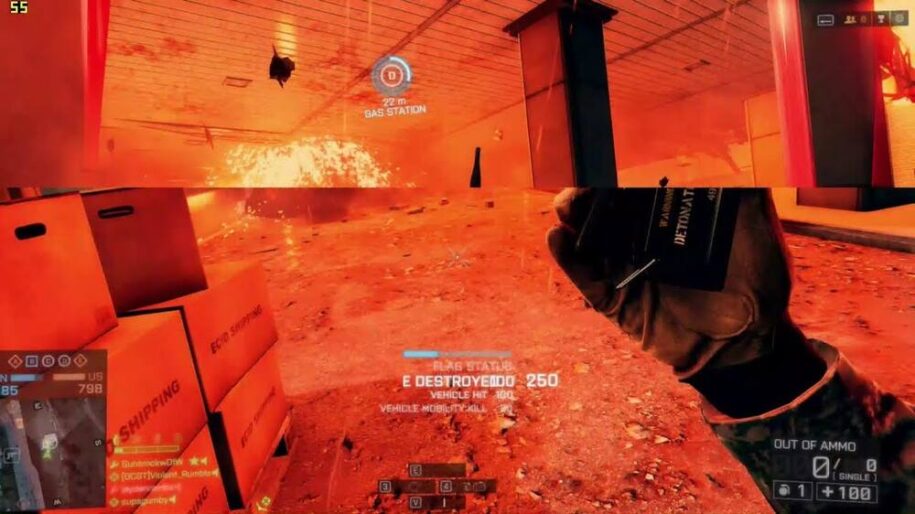
Some newer titles are going further. Games like Battlefield 6 require Windows 11 security features for their anti-cheat systems. If your hardware can’t run Windows 11, you can’t play those games at all.
Your existing library should keep working, especially single-player and offline games. But expect problems with online multiplayer, new releases, and games that push regular updates.
Official Date for Windows 10 Support Ending
For those wondering, “when does Windows 10 support end?” Microsoft has set October 14, 2025, as the official date for ceasing Windows 10 support. After that, no more security updates, bug fixes, or technical assistance for Home, Pro, Enterprise, and Education editions.
Version 22H2 is the final feature update for Windows 10. If you’re running an older version, you can still upgrade to 22H2, but there won’t be anything beyond it. This is the end of the line.
What Happens to Your System When Windows 10 Support Ends?
Windows 10 will boot normally, your files stay intact, and installed programs will continue to run. But you’re operating without a safety net. New vulnerabilities get discovered constantly, and without patches from Microsoft, your system becomes an easier target.
Hardware and software compatibility starts breaking down too. GPU manufacturers prioritize driver updates for supported systems, so new graphics cards might not get Windows 10 drivers. Game developers stop testing on Windows 10, and anti-cheat systems require security features that only patched operating systems provide.
You can keep using Windows 10 after support ends, but you’re gambling with security and compatibility.
Can I Use Windows 10 After 2025?
Yes, but you’re taking on risk. Without security patches, every new exploit that gets discovered becomes a permanent vulnerability on your system. Hackers target unsupported operating systems because they know the holes won’t get fixed. The longer you wait, the worse it gets.
Microsoft offers Extended Security Updates (ESU) for Windows 10. This gives you additional security patches for a limited time beyond the cutoff date, but it comes at a cost. ESU is a paid program meant as a temporary bridge, not a long-term solution.
If you’re serious about gaming, staying on unsupported Windows 10 isn’t worth the trade-off. The security risks are real, and game compatibility will only get worse.
Exploring Your Upgrade Options
Each option has pros and cons. Let’s break them down so you can make the right choice for your setup.
Transitioning to Windows 11 for Better Features and Security
If you’re asking “when will Windows 10 support end?” and wondering what comes next, Windows 11 is the clear answer.
DirectStorage lets your GPU access your SSD directly, loading textures and levels significantly faster. Security got a major upgrade with TPM 2.0 and Secure Boot by default, creating a hardware-backed layer that anti-cheat systems are starting to require. Driver support is where the long-term benefit shows up. GPU manufacturers prioritize Windows 11 for new drivers, performance optimizations, and bug fixes.
Your PC needs to meet specific requirements to run Windows 11. The big three are TPM 2.0, a compatible CPU (8th gen Intel or 2nd gen AMD Ryzen and newer), and Secure Boot capability. Most gaming PCs built in the last few years already have this hardware. You can check compatibility by downloading Microsoft’s PC Health Check tool from their website.
Can you upgrade from Windows 10 to 11 for free? Yes, if your hardware qualifies. Microsoft is offering free upgrades with no time limit right now.
Evaluating Extended Security Updates
ESU is a paid patch that extends Windows 10 security coverage beyond October 14, 2025. They’re aimed at businesses and educational institutions, and consumer availability isn’t fully clear yet.
The program runs up to three years past end-of-support. Each year costs more than the last, and you must pay sequentially. You only get critical security patches—no new features or non-security fixes.
ESU buys time if your hardware can’t run Windows 11 and you need to save for a new system. But you’re paying for temporary protection while driver support declines and game compatibility suffers. For most gamers, upgrading makes more sense than paying annually for a stopgap solution.
Embracing Alternatives: Virtual PCs and Other Operating Systems
Windows 11 isn’t your only option, but alternatives come with trade-offs.
Virtualization services like Windows 365 and Azure Virtual Desktop let you run Windows 11 in the cloud while your local PC stays on Windows 10. This works for productivity tasks, but latency and streaming limitations make it impractical for gaming.
Linux has improved for gaming thanks to Steam’s Proton compatibility layer, but anti-cheat support remains inconsistent. Games using kernel-level anti-cheat often won’t work at all. Dual-booting lets you keep Windows 10 while using another OS for daily tasks, but it requires managing two systems and rebooting to switch.
For gamers who want maximum compatibility and performance, Windows 11 remains the best path forward.
What If My PC Doesn’t Meet Windows 11 Requirements?
If your PC doesn’t meet Windows 11’s requirements, workarounds exist but come with risks. Some users bypass TPM 2.0 and CPU checks using registry edits or modified installation media, but Microsoft doesn’t officially support these methods. You won’t get the same security protections, future updates might break, and the security features you’re bypassing are what anti-cheat systems require.
If your PC is more than five or six years old, upgrading your hardware makes more sense than forcing an unsupported install. You’ll get better performance, full compatibility, and a system that’s ready for the next several years of gaming.
Ensuring a Smooth Transition
Upgrading to Windows 11 sounds intimidating, but it’s a relatively straightforward process.
Steps to Upgrade Your PC to Windows 11
Before you start, handle the basics. Back up your important files to an external drive or cloud storage. Run Windows Update to make sure your current system has the latest drivers and patches. Download Microsoft’s PC Health Check tool to confirm your hardware meets the requirements.
Once you’re ready to upgrade, you have options. The easiest route is Windows Update. If your PC qualifies, Windows 11 will appear as an available update. Accept it, and the system handles the rest. You can also use Microsoft’s Installation Assistant for a guided upgrade or download the Windows 11 ISO if you want to do a clean install.
If you get compatibility warnings during the process, read them carefully. Some are minor and won’t affect your experience. Others might indicate missing drivers or hardware issues that need attention. Don’t skip these warnings. Address them before continuing, or you might run into problems after the upgrade completes.
Transferring Files and Settings to Your New OS
For an in-place upgrade on the same PC, Windows handles most of the work automatically. Your files, settings, and installed programs carry over.
For moving to a new PC, Microsoft is testing a Windows Migration feature in the Windows Backup app that transfers data over your local network using a pairing code, though it’s still rolling out.
OneDrive works well for documents, photos, and desktop files if you have enough cloud storage, while external drives or network storage give you full control and work offline. For large game libraries, external SSDs are your best bet since cloud transfers take forever.
Steam, Epic, Xbox, and other launchers let you point to existing game files instead of redownloading everything. Most platforms detect installed games automatically once you log in. Driver updates usually happen through Windows Update after the migration, but check your GPU manufacturer’s site (NVIDIA, AMD, or Intel) for the latest drivers to get optimal performance right away.
Considering a New High-Performance PC?
If your current system can’t run Windows 11, buying a new PC might be more cost-effective long term than piecemeal upgrades or workarounds.
NVIDIA’s RTX 50-series and AMD’s RX 9000-series cards handle modern games with ray tracing and AI-powered upscaling. Pair that with a fairly recent model CPU like Intel 12th gen or newer, or AMD Ryzen 5000-series or newer, to avoid bottlenecks. You’ll also want an NVMe SSD for fast load times and DirectStorage support, plus proper cooling to keep everything running at peak performance without thermal throttling.
At CyberPowerPC, we build systems around your needs, not ours. Pick the components that fit your budget and gaming style, then let our experienced technicians assemble it for you, right here in the U.S. Every unit is tested before it ships and backed by our warranty and support.
Troubleshooting Common Upgrade Issues
Most Windows 11 upgrades go smoothly, but if yours fails, the problem usually comes down to disk space, antivirus interference, or driver conflicts.
Windows 11 needs at least 64GB of free space to install. If you’re running low, clear out temporary files, uninstall unused programs, or move large files to external storage. Antivirus software can block system changes during the upgrade, and older peripherals or custom hardware might lack Windows 11 driver support.
Start with these quick fixes: temporarily disable your antivirus before upgrading, perform a clean boot to stop background programs from interfering, and update your BIOS or firmware if your motherboard manufacturer has a newer version available. For more specific error codes and solutions, check Microsoft’s troubleshooting guide.
Why CyberPowerPC is Your Best Choice
Upgrading to Windows 11 or buying a new system is a big decision. We’ve been building high-performance gaming PCs since 1998, and we understand what gamers need to stay competitive and secure.
Our Commitment to Technology and Customization
Every CyberPowerPC system is built to your specifications. Pick your GPU, CPU, RAM, storage, and cooling based on what you play and how you perform. Need overclocking capabilities? We can configure that. Want to prioritize your graphics card and upgrade other components later? That works too.
Collaborations with Industry Leaders: NVIDIA, Intel, Microsoft
We partner directly with NVIDIA, AMD, Intel, and Microsoft. These partnerships mean early access to drivers, optimization support, and hardware that’s tested and validated before it reaches you.
Our Green Initiatives and Ethical Approach
We’re committed to reducing waste through sustainable materials, recycling programs, and energy-efficient components. Building responsibly matters to us and to the gaming community.
Experience You Can Trust
Every system is assembled and tested by our technicians in the U.S. We back our work with warranty coverage, responsive customer support, and quality assurance testing to make sure your PC performs from day one.
Take Action Today
Shop Now for the Latest PC Models
Ready to upgrade? Browse our lineup of Windows 11-ready prebuilt gaming PCs stocked with the latest hardware. From budget-friendly builds to flagship systems with top-tier components, we have options for every level of gamer.
Contact Us for Expert Advice on Your Transition
Not sure which system fits your needs? Our team is here to help. Reach out through our live chat or contact our support team.
Learn More About Our Customization Options
Your gaming PC should reflect how you play. Browse our selection of graphics cards, cooling solutions, memory options, and storage configurations to create the perfect setup.
Frequently Asked Questions
When does Windows 10 support end?
Microsoft ends Windows 10 support on October 14, 2025. After that date, you won’t receive security updates, bug fixes, or technical support.
Can I use Windows 10 after 2025?
Yes, you can use Windows 10 after 2025, but you won’t receive security updates, bug fixes, or technical support from Microsoft. Your system becomes increasingly vulnerable to security threats and compatibility issues over time.
Can you upgrade from Windows 10 to 11 for free?
Yes, you can upgrade from Windows 10 to 11 if your PC meets the hardware requirements. Microsoft offers free upgrades to Windows 11 for qualifying systems.
Does Windows 11 need to be bought?
No, Windows 11 is a free upgrade for eligible Windows 10 systems.
Is Windows 11 available now?
Yes, Windows 11 has been available since October 2021.
What if my PC isn’t compatible with Windows 11?
If your PC isn’t compatible with Windows 11, you can use workarounds to bypass hardware checks, but this comes with risks and no official support. Upgrading your hardware or buying a new system is the better long-term solution.
How long will ESU updates last?
Extended Security Updates typically run for up to three years past the end-of-support date, with each year costing more than the last.
Do my games still run if I switch OS?
Most games work fine on Windows 11. Some newer titles may actually require Windows 11 for anti-cheat compatibility and optimal performance.