
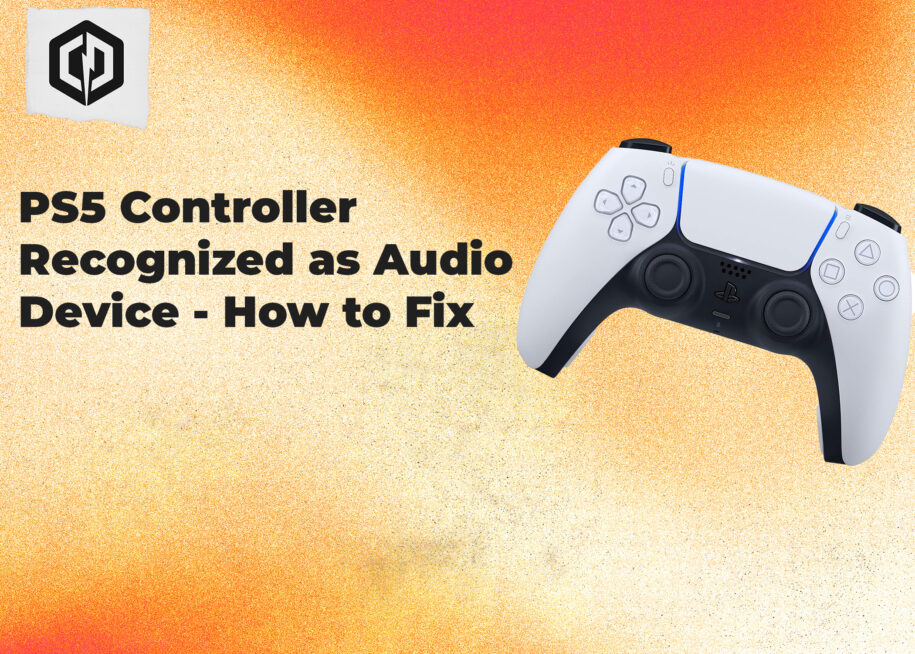
The PS5 DualSense controller is a great option for adding a controller to your PC. Sometimes when you plug a PS5 controller in to your PC, it will be recognized by Windows as the default audio output device. No one wants all of their game audio coming through a shrinky dink speaker on a controller.
The PS5 DualSense controller is a great choice for any PC game that just works better on controller. Plus it is becoming more widely supported by games, which include showing the correct symbols for button prompts and taking full advantage of the controller’s features such as dynamic vibration and adaptive triggers. Let’s take a look at how to stop the Dualsense from being recognized as an audio device so that you can fully enjoy everything the controller has to offer.
How To Stop PS5 Controller from Acting as Speaker on PC
- Start by clicking on the speaker symbol on your task bar. On the menu that follows, click the gear icon. This will open Windows settings.
- Now in the settings Window, you will want to click “System” and then “Sound”. In some cases Windows will have a “Recommended Settings” section, if “Sound” is there you can just click it there.
- You will now see a list of audio outputs. Anything you have that can output sound will be listed here, be that headphones, speakers, or built in speakers (if you monitor has those).
- Scroll through the listed devices. Here you will find your PS5 controller doing it’s best to pretend it is a speaker. The heading will say “Speakers”, and the text below will read, “2-DualSense Wireless controller”. Click on this.
- Now in the Properties window for this device – turn your attention to the “General” tab at the top. Click the “Don’t allow” button. By doing so, Windows will no longer let audio play through the controller’s speaker.
Unfortunately, Windows can be a little finicky and has a tendency to mess with your settings. In some cases, it can undo this change you made when you plug in or reconnect your controller again for a new play session. For a permanent solution, we just need to dig a little deeper and change some things in “Device Manager”.
Disable PS5 Controller Speaker from Device Manager
- Click the Windows key and type “Device Manager”. Click to open when it shows up in the search results.
- Scroll down to the “Sound, Video, and Game Controllers” tab. Click to expand the list of devices.
- Find “DualSense Wireless Controller” in this list.
- Right click and then click “Disable Device”.
- A warning will appear, “Disabling this device will cause it to stop functioning. Do you really want to disable it?” Click “Yes” to proceed.
Just to be sure, restart your PC after doing this. Now your PS5 controller will not be used as a speaker and you can enjoy your game audio as intended, through a good pair of headphones or some nice booming speakers.
If for some reason you want to use the controller speaker again (why?!), all you need to do is go back to Device Manager, right click, and re-enable it.
Hope this helps, happy gaming!