One of the most important things to consider when upgrading your gaming PC’s hardware is if it is compatible with your current motherboard. Installing any hardware device that is not compatible with your motherboard is certainly a recipe for disaster.
There are several methods you can do to check and identify the motherboard installed in your gaming PC. Let’s take a look at each method of identifying what motherboard you have.
- 1 – Use Windows PowerShell
- 2 – Take a Look Inside Your PC Case
- 3 – Check Through Windows System Information
- 4 – Download and install third-party software.
1 – Use Windows PowerShell
Use Windows PowerShell to read the motherboard information reported by your PC. Follow these steps to check the manufacturer, product name, and version:
- Step 1 – Type “PowerShell” in the Windows search bar and open Windows PowerShell. If you use Windows Terminal, select its PowerShell tab.
- Step 2 – Enter
Get-CimInstance -ClassName Win32_BaseBoard | Select-Object Manufacturer, Product, Versionand press Enter. - Step 3 – Read the Manufacturer, Product, and Version fields. If the result is blank or generic, confirm the model using the board label or your PC’s documentation before choosing an upgrade.
Older instructions used wmic. Microsoft has deprecated and removed that command-line utility from current Windows 11 releases, so use PowerShell instead. The command above reads the Win32_BaseBoard information and does not change your PC’s settings.
2 – Take a Look Inside Your PC Case
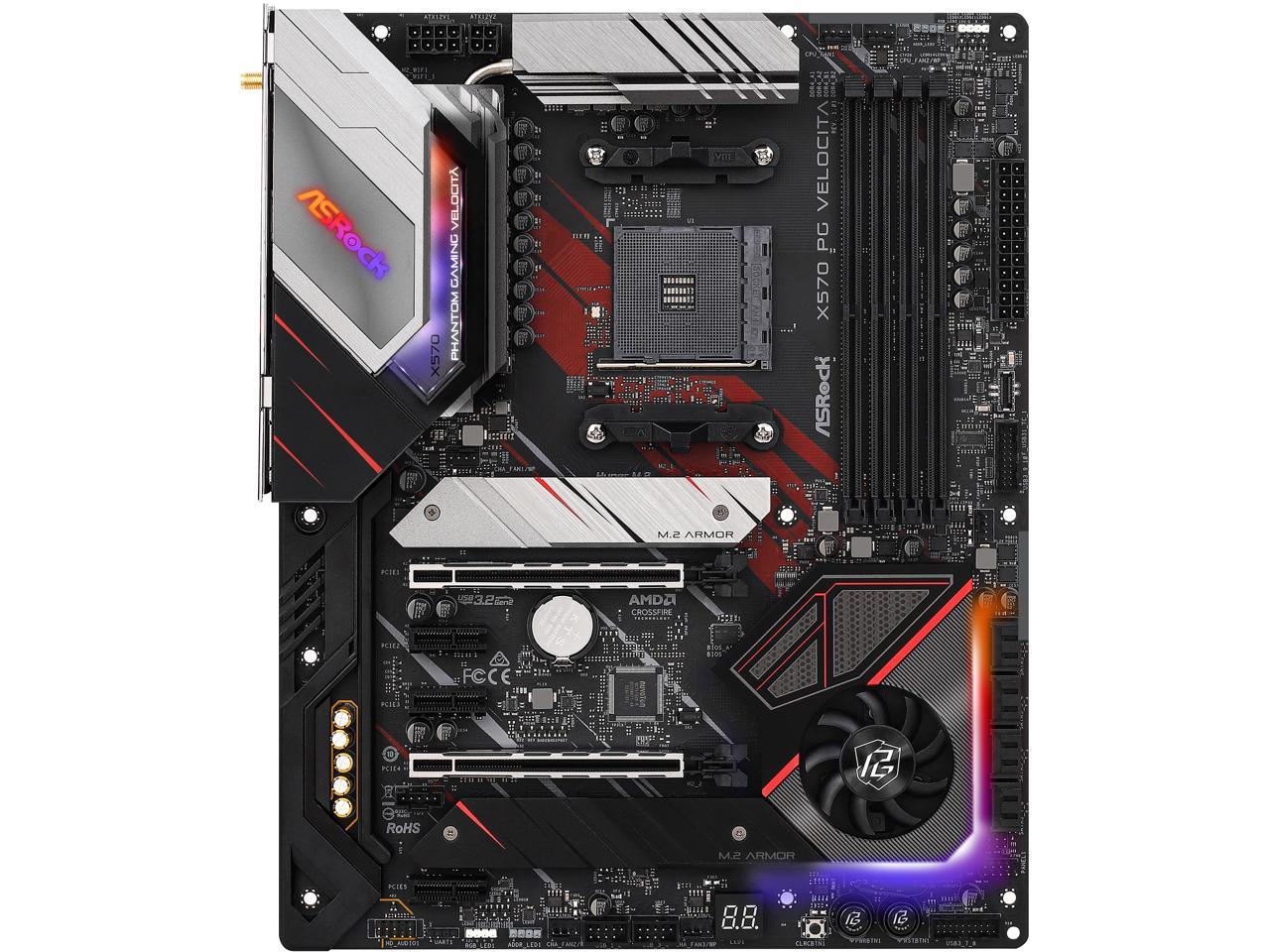
Another way to quickly check and identify your motherboard is to open up your computer. Check the motherboard and look for the manufacturer and model number in it. Make sure you shut down your PC first and unplug the power before doing this method.
If you look closely at the board, you will usually notice that the brand name and model information are printed right on the board itself. Each manufacturer and their various models have different layouts of their chipset components, so this info is not in a consistent place across every single motherboard. Usually it will be found near the CPU socket, alongside the PCI expansion slot. Higher end models with large heatsinks will print this information on their stylized heatsinks.
Below are the most common motherboard manufacturers you will see:
- ASUS
- ASRock
- Gigabyte
- MSI
If you have located the manufacturer’s logo on your motherboard but not the model name. Then check the motherboard’s chipset. The model name usually starts with a 4-digit code combining a letter followed by three numbers. As a reference, you can refer to this list of AMD chipsets and Intel chipsets.
Before opening your gaming PC, keep in mind that some pre-built desktop units have warranty. This may restrict you from opening your PC case.
3 – Use Windows System Information
Windows System Info is another way you can find out what motherboard you have in your gaming PC. This method is the easiest way to get this info, but not always the most reliable. Sometime it will only show your motherboard’s manufacturer and not the exact model number you have.
Follow the steps below to use Windows System Info:
- Step 1 – Press the Windows key on your keyboard or click the Windows symbol on your task bar to open the start menu.
- Step 2 – In the start menu, type “System Information”. Click the program to open it.
- Step 3 – Scroll down to the section called “System Summary” tab until you find the details showing Baseboard Manufacturer, Baseboard Product, and Baseboard Version. Yes it’s called BaseBoard in this menu, but its just another way of saying motherboard.
4 – Use A 3rd Party Software
There are programs designed to display your motherboard details, including manufacturer and model, amongst other system information such as temperature or clock speeds of your CPU and GPU.
Some popular options for these are CPU-Z or HWiNFO.
Check out the guide below to use each program to identify your motherboard:
CPU-Z is free software that shows information about your main hardware.
To use CPU-Z, start the program and click on the “Mainboard” tab located at the top of the window. This will show your motherboard information once it’s detected.
HWiNFO is another free software that analyzes, monitors, and can create reports on the performance information of your hardware.
In HWinfo, find the “Motherboard” list option on the left pane and click it to see the details about your motherboard.
***
Hopefully this guide helps you now know how to check and identify what motherboard you have in your gaming PC.