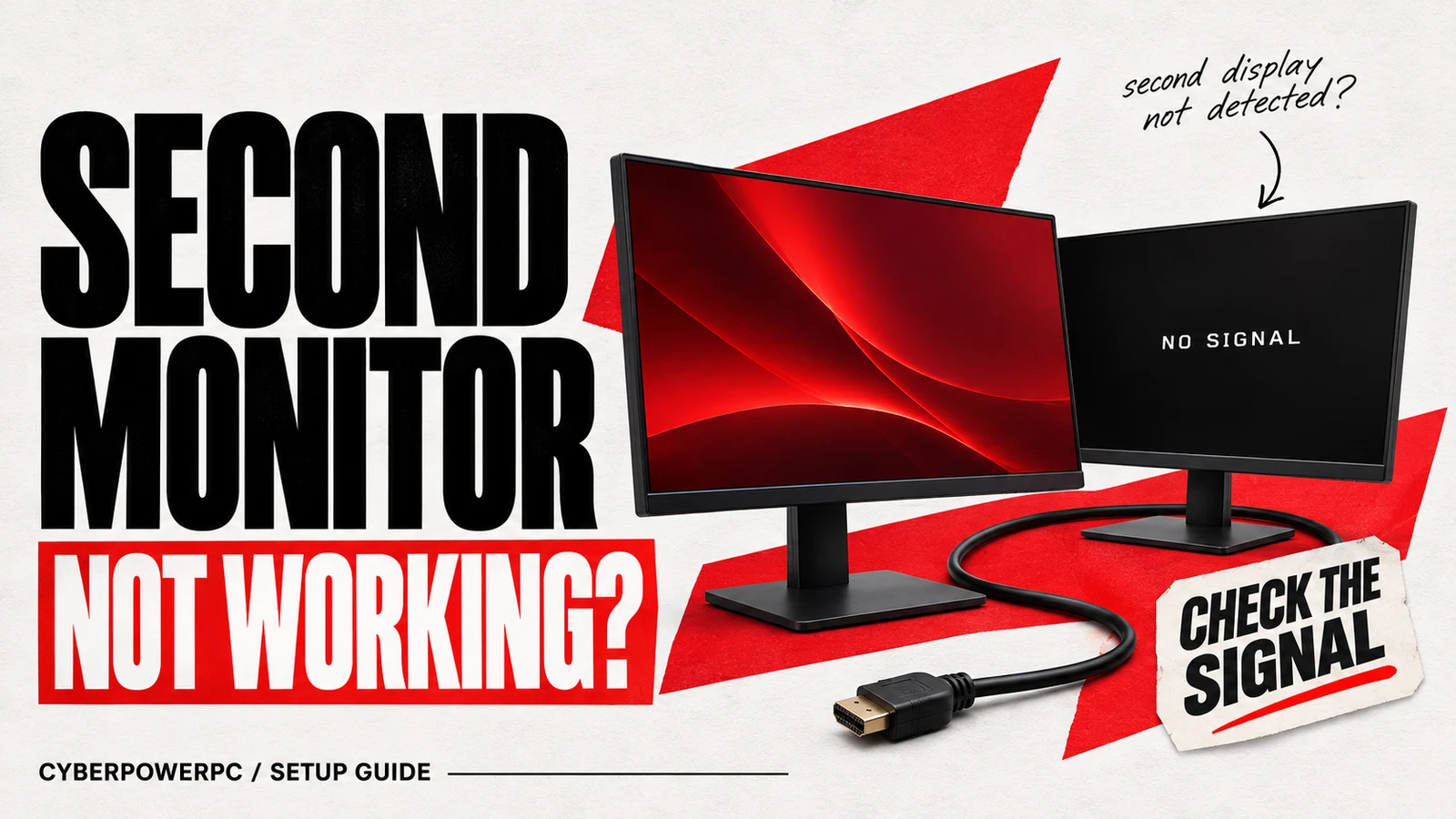
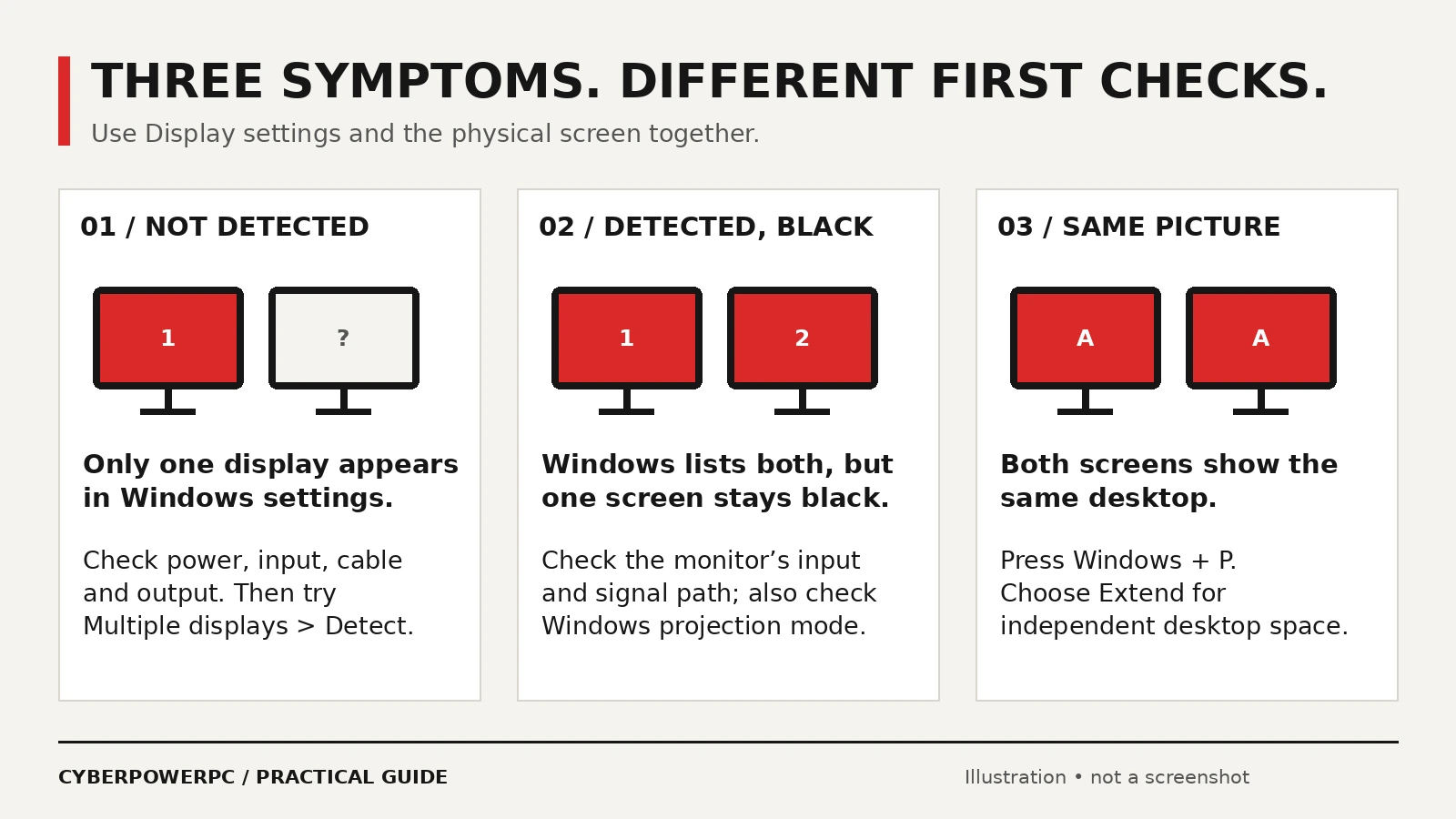
A second monitor can fail in several ways: Windows may not detect it, the screen may stay black even though it is detected, or both screens may show the same picture. Start by checking the monitor’s power and selected input, then test the cable and PC connection. Check Windows display settings as part of the same process—not as a reason to rule out the hardware.
If one screen already works, use it to open Windows settings and establish a known-working connection for the tests below. If neither screen shows a picture, first check each monitor’s power, input selection and cable connection, and try to establish one working display. The Windows settings steps require a visible desktop. For normal first-time installation, see our dual-monitor setup guide.
First, identify the symptom
Open Settings > System > Display on your working screen. A second display rectangle means Windows recognizes another display, even if that screen is black. No second rectangle means you need to investigate detection or the connection itself. A visible desktop that mirrors the first screen is a third situation: the display is connected, but you have not extended the desktop.
Write down which of those three symptoms you see. Also note whether this setup has ever worked. A new adapter introduced yesterday deserves different attention from a setup that stopped working immediately after a driver update.
Run a one-change connection test
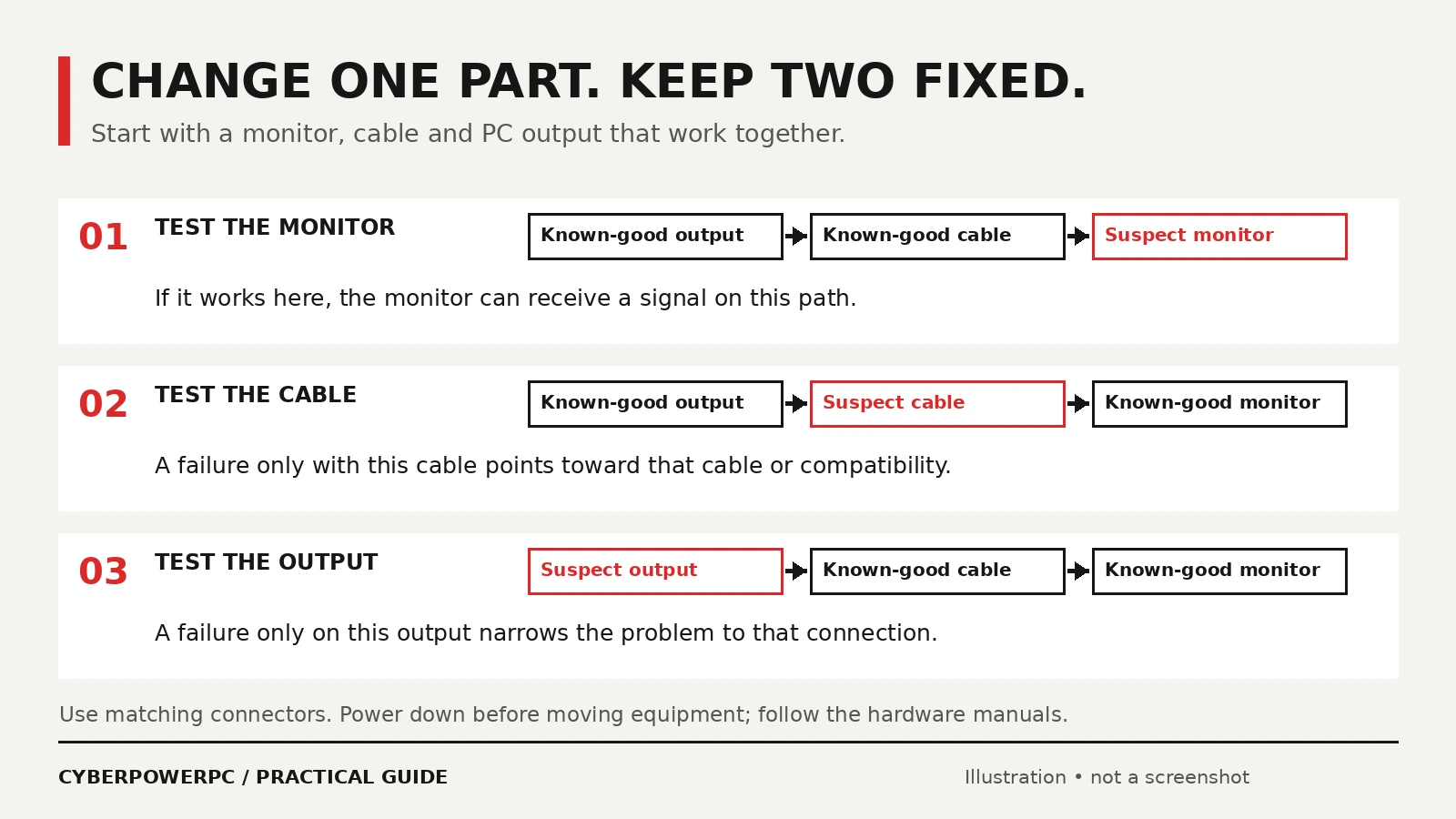
Label your working monitor A and the missing monitor B. Keep a note of the cable and PC output used by A. Before moving equipment, shut down the PC and switch off the screens; follow the monitor manual when disconnecting cables.
- Test B where A worked. Use A’s known-working cable and PC output with B, if the connectors match. Select the matching input in B’s own menu. If B now displays a picture, it can receive a signal through that path.
- Test the suspect cable. Keep the successful monitor and PC output unchanged, then substitute the cable originally used for B. A failure that follows only this substitution points toward the cable or its compatibility.
- Test the other output. Return to the known-working cable and monitor, then try the intended second PC output. Record whether the failure follows that output.
If the connectors do not match, skip that substitution rather than forcing a plug or adding another unverified adapter. The aim is to reduce unknowns. A test that changes the monitor, cable, and adapter together cannot tell you which one fixed the problem.
Dell’s monitor troubleshooting guidance likewise recommends testing with a known-good display and checking the physical connection. Use your own monitor’s manual for input selection or built-in diagnostics; button sequences differ by model.
Check the route from PC to screen
A dock, converter, or splitter adds another device to investigate. Where compatible ports allow it, test a direct connection first. An ordinary display splitter repeats one signal; it does not create two independent Windows desktops. Check the graphics adapter’s documented display limits instead of assuming the number of sockets guarantees every combination works.
When shopping for a gaming desktop, record the exact graphics card and the display connections your setup needs. “Two monitors” is more useful as a configuration requirement when accompanied by their model names and intended resolution and refresh rate.
Then check Windows
Press Windows + P and choose Extend. In Settings > System > Display, expand Multiple displays and select Detect. If both screens appear, use Identify and arrange their rectangles to match your desk. Microsoft explains these controls in its multiple-monitor setup instructions.
If a previously working setup suddenly failed, save your work and restart. Microsoft also documents Windows + Ctrl + Shift + B as a graphics-driver reset shortcut. If the failure began directly after an update, its external-monitor troubleshooting guide covers driver rollback. Avoid stacking several driver changes before retesting.
Know when you have enough evidence
For example, if B works on A’s cable and output, and A fails when connected through B’s adapter, you have narrowed the problem to that connection path. That does not yet prove the adapter is defective: it may be incompatible. Check its supported input direction and display modes before replacing it.
If both displays work individually but not together, record that result for support along with your GPU, monitor models, connection map, and Windows version. Once both screens work, restart and test again before tidying the cables. A repeatable result is the useful finish line.