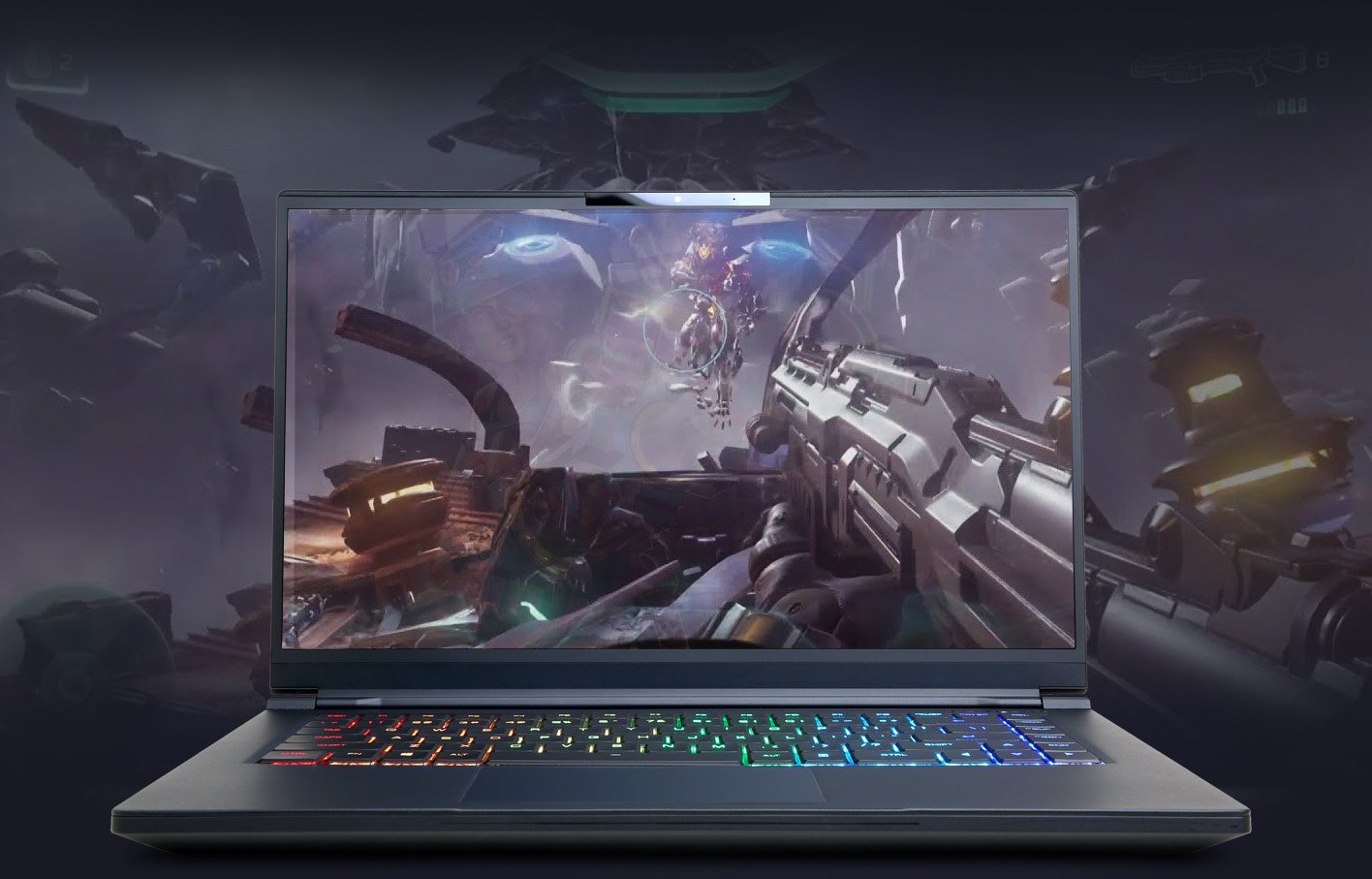
Gaming laptops have come a long way. Sure a high-end gaming desktop still leads in raw power and upgradability, today’s top-tier gaming laptops can offer comparable performance in a portable form factor. If your laptop is a few years old, or not quite top-spec, don’t go and rush out to buy a new one just yet.
With the right tweaks and upgrades, you can significantly improve the speed, responsiveness, and frame rates of your current gaming laptop. Here are 8 proven ways to boost your gaming laptop’s performance in 2026:
1. Update All Your Drivers—Especially the GPU
One of the most effective ways to speed up a gaming laptop is to keep all drivers up to date—especially your GPU, motherboard chipset, and DirectX.
How to update GPU drivers:
- NVIDIA: Download the latest GeForce drivers
- AMD Radeon: Download the latest Radeon Software
- Intel ARC / Intel Integrated Graphics: Get the latest Intel Graphics drivers
Tools like GeForce Experience or AMD Adrenalin to automatically manage driver updates, use these instead of going to the manufacturers website every time you want to upgrade your drivers.
2. Switch to High-Performance Power Mode
By default, most laptops run in “Balanced” mode to conserve battery life. Switching to High Performance or Ultimate Performance unlocks the full potential of your CPU and GPU.
How to enable Ultimate Performance mode:
- Go to Settings > System > Power & Battery
- Click Additional Power Settings
- Select Ultimate Performance (you may need to unhide additional plans)
This ensures your system prioritizes performance over battery life.
3. Use an SSD as Your Primary Drive
If your laptop still boots from a traditional hard drive, upgrading to a Solid State Drive (SSD) is a game changer. SSDs drastically reduce boot times, game loading times, and overall system lag.
When possible, install your operating system and your most-played games on the SSD for the best performance.
If you bought a laptop recently than chances are you already have an SSD!
4. Upgrade Key Hardware Components
Depending on your laptop’s model, some components may be upgradable. The most impactful upgrades are:
- RAM: 16GB is the sweet spot for modern gaming. If you’re running on 8GB or less, upgrade if possible.
- Storage: Swap an HDD for an SSD, or add a second SSD if you need more space.
- GPU: Most laptops have soldered GPUs, but a few support external GPU (eGPU) docks via Thunderbolt 4 or other connection.
Before upgrading, check your laptop’s compatibility or consult your manufacturer’s website.
5. Uninstall Bloatware and Unused Apps
Too many background apps eat up valuable RAM and CPU cycles. Clean up your system by:
- Uninstalling unused programs via Settings > Apps
- Disabling startup apps in Task Manager
- Running a cleaning utility like CCleaner to remove junk files and free up disk space
This frees up resources for your games to run smoother and faster.
6. Keep Windows Up to Date
Always keep your Windows operating system updated to the latest version. Updates often include performance optimizations, driver improvements, and security patches.
Go to Settings > Windows Update and click Check for Updates to stay current.
7. Enable Game Mode in Windows 10/11
Windows includes a built-in Game Mode that automatically optimizes your system for gaming by reducing background activity.
How to turn it on:
- Go to Settings > Gaming > Game Mode
- Toggle Game Mode to On
This ensures that more system resources are dedicated to the game you’re playing, helping maintain stable frame rates.
8. Physically Clean Your Laptop
Dust buildup impedes airflow which reduces cooling, this leads to thermal throttling, a major performance killer. If your laptop feels hotter than usual or the fans sound like a jet preparing for takeoff, it’s time for a clean.
Tips:
- Use compressed air to clean the vents and fans
- Consider repasting the CPU/GPU with thermal paste (if you’re comfortable doing it)
- Use a laptop cooling pad to improve airflow
Keeping your laptop dust-free helps maintain consistent performance and extends its lifespan.
Final Thoughts
You don’t always need a brand-new laptop to enjoy smooth gameplay. With these tips, you can breathe new life into your current gaming laptop, whether you’re trying to boost FPS, reduce stuttering, or load into games faster.
Looking for a bigger upgrade? Explore our gaming laptops, including our new Tracer IX Gaming Laptops